The FreeBSD Diary |
|
(TM) | Providing practical examples since 1998If you buy from Amazon USA, please support us by using this link. |
|
an ATI XPERT 128 patch for XFree86-4
26 December 2001
|
|
Early this week, I bought an ATI XPERT 128 video card. This card was destined to be part of the box I talked about in my previous article about keyboards in headless boxes. The motherboard has an on-board S3 video card, but I failed to get that working. I gave up, and bought the ATI upon the recommendation of someone who knows these things. So on snow filled roads, I headed off to OEM Express and picked up the card. NOTE: since writing this article, I've had word from the XFree86 project that support for the ATI XPERT 128 (which is a Rage 128 PP) is already in their CVS. The FreeBSD Port was updated on 5 January 2002 (PORTVERSION=4.1.0, PORTREVISION=3). Until today, all the articles on this website about XFree86 were written by contributing authors. I have previously installed XFree86 on my dual XEON.and actually kept some notes on that adventure. It was never published because they would not have helped anyone. But in combination with the ATI XPERT success, I figured it was time to write. |
|
What is XFree86
|
|
XFree86 is a freely re-distributable open-source implementation of the X Window System. It runs on many operating systems including the BSDs, Mac OS X (aka Darwin), Solaris, and OS/2. It sits between the hardware and your graphical user interface. It is important to note that XFree86 is a server. To use it, you must have a client. KDE, GNOME, Enlightenment, Blackbox, AfterStep, twm and fvwm are all XFree86 clients. |
|
Installing XFree86
|
|
The installation of X was fairly straight forward since I had the ports tree installed. I answered all the questions with the default answers (I think...). This was the easy part. But before you do the above, you may wish to read the next section. |
|
mega-port or sub-ports?
|
|
Pete Fritchman (a FreeBSD committer) wrote the following.
Thanks Pete. I didn't know about the deprecation until after I had nearly finished the article and was looking around for help about my mouse problem. |
|
Tell everyone you're using XFree86-4
|
|
I've been told by more than one person that after installing XFree86-4, you should add
this entry to
Why? The answer is in That handy little line will ensure that in the future, when you install a port which depends on X, it will use 4, not 3. |
|
Configuration
|
|
I had a very hard time setting up X. No doubt about it. Your milage may vary. Please don't assume that this article will have all the answers to your X configuration. I'm only reporting what worked with me with my hardware. But I wish you well. There are two ways I know of to configure X:
I started off with option #2, but immediately encountered a problem. The last part of the error message is as follows:
That was not a particularly helpful start to the configuration. So I went on to the
other option ( |
|
Monitor details
|
|
You will need the horizontal and vertical refresh rates for your monitor. It is very important that you get the correct values. Look in your owner manual. Look on the web. Get the right information. You can damage your monitor if you do not specify the correct values. |
|
Card selection
|
|
At one point during the configuration, you will be asked to look at the card database. Please do so. See if you can locate your card. Use that option. Don't worry if you go past your card in the list. Just keep going and the list scrolls through again. My card (ATI XPERT 128) was not listed. So I chose one which looked similar (I think it was ATI Xpert 98). |
|
Screen resolution
|
|
You will also have the opportunity to change the list of modes (screen resolutions). That screen will look something like that:
X will take the first resolution which works. I modified the modes
to put the higher resolutions first. For example, For color depth, I chose 24 bits as the default. |
|
'Tis the season to be wrapping...
|
|
XFree86-4 comes with a wrapper function. This allows non-root users to run X. I didn't save the message which appears if you try to run X as non-root. If you encounter that message, please save it in the message comments if someone else hasn't already done that. Thank you. To install the wrapper, I did this: |
|
Starting X
|
|
The rather aptly named command to start X is: Unfortunately, it wasn't that simple. |
|
The problem behind the patch
|
|
I encountered the same message as when I tried to run Looking back at this now, it's easy to see that running the configuration from the previous step wouldn't change what already existed. The X server didn't recognize my card. And running a configuration routine would not change that fact.
I spent several hours tracking down documents via Google which talked about ATI XPERT 128. They all said the card contained a RAGE 128 chipset and to use that. I found very many references to two solutions. Unfortunately, both URLS were unreachable (I'm guessing the documents no longer exist on the net). I was resigned to buying another card which XFree86 supported directly. But then Chris Dillon suggested I patch the code to add my card to the system. Hmmm, OK. At first I was very skeptical I could get that to work. Chris Shumway was helping me through this part of it (thanks Chris, it was helpful) and asked to see this output:
We knew what line to look for because of this entry found in the
Look at the second-to-last line in the You should also notice that 5050 appears in both outputs. We will be using that in our patch.
You will see this information when you read about the patch in a later section of this article. |
|
The patch
|
|
It was Chris Dillon who guided me through this patch and it was his information which led me to the files which needed modification. The patch is available at /samples/ATIXPERT128XFree86-4.patch. This patch is now included within the FreeBSD port. It has also been submitted to the XFree86 project. Initial feedback from them indicated they had already patched their code. But I had a look at their CVS repository and their patch appears to have been incompletely applied. If you want to see their code, see these links: As you can see, r128_probe has been udpated. I'll update this when I hear back from them about the patch.
The first change was to The line I added contains the card ID as shown in the previous section. Here's the line: I made up the PE suffix. The entry before it was PD. The next change involves the card name etc:
The remaining changes were in the directory I have no idea if this patch is correct. I know it got my card working. It may not work for you. In fact, I would not be surprised if your computer exploded given this patch. Be warned. |
|
Running configure again
|
|
Adding this didn't mean I could still run XFree86 -configure. That still doesn't recognize the code. I'm sure I need to recompile something there. Actually, I tried this: Then I reran the original configuration command: I ran with that, it seemed to work fine. For your information, here's the setting for my ATI XPERT 128 card: That configuration worked for me. The configuration file I'm running with now is at /samples/XF86Config. |
|
Adding KDE
|
|
I wanted to add KDE as my window manager. So I did the following: cd /usr/ports/x11/kde2 && make install && make distclean cd /usr/ports/x11-wm/kdeartwork && make install && make distclean cd /usr/ports/x11-wm/mosfet-liquid && make install && make distcleann WARNING: Installing KDE2 will take quite a while. I prefer to instal from source. It took overnight...
Actually, I couldn't get ===> Configuring for mosfet-liquid-0.7 cd /usr/ports/x11-wm/mosfet-liquid/work/mosfet-liquid0.7; gmake -f Makefile.cvs This Makefile is only for the CVS repository This will be deleted before making the distribution *** Concatenating configure tests into acinclude.m4 *** Creating list of subdirectories in subdirs *** Searching for subdirectories... *** Retrieving configure tests needed by configure.in *** Scanning for include statements ./aclocal.m4:2695: error: m4_defn: undefined macro: _m4_divert_diversion acfunctions.m4:1108: AM_FUNC_OBSTACK is expanded from... ./aclocal.m4:2695: the top level autoconf: tracing failed gmake[1]: *** [cvs] Error 1 gmake: *** [all] Error 2 *** Error code 2 Stop in /usr/ports/x11-wm/mosfet-liquid. *** Error code 1 I haven't been able to figure that one out yet. |
|
Starting KDE
|
|
After installing KDE, I again run
You have to tell X to start KDE. You do that with this entry in
And then |
|
Installing fonts
|
|
You can install additional fonts and this will make your screen much more pleasant to look at. Here are the fonts I installed:
Then you need to tell XFree86 about the fonts. Here are the entries from
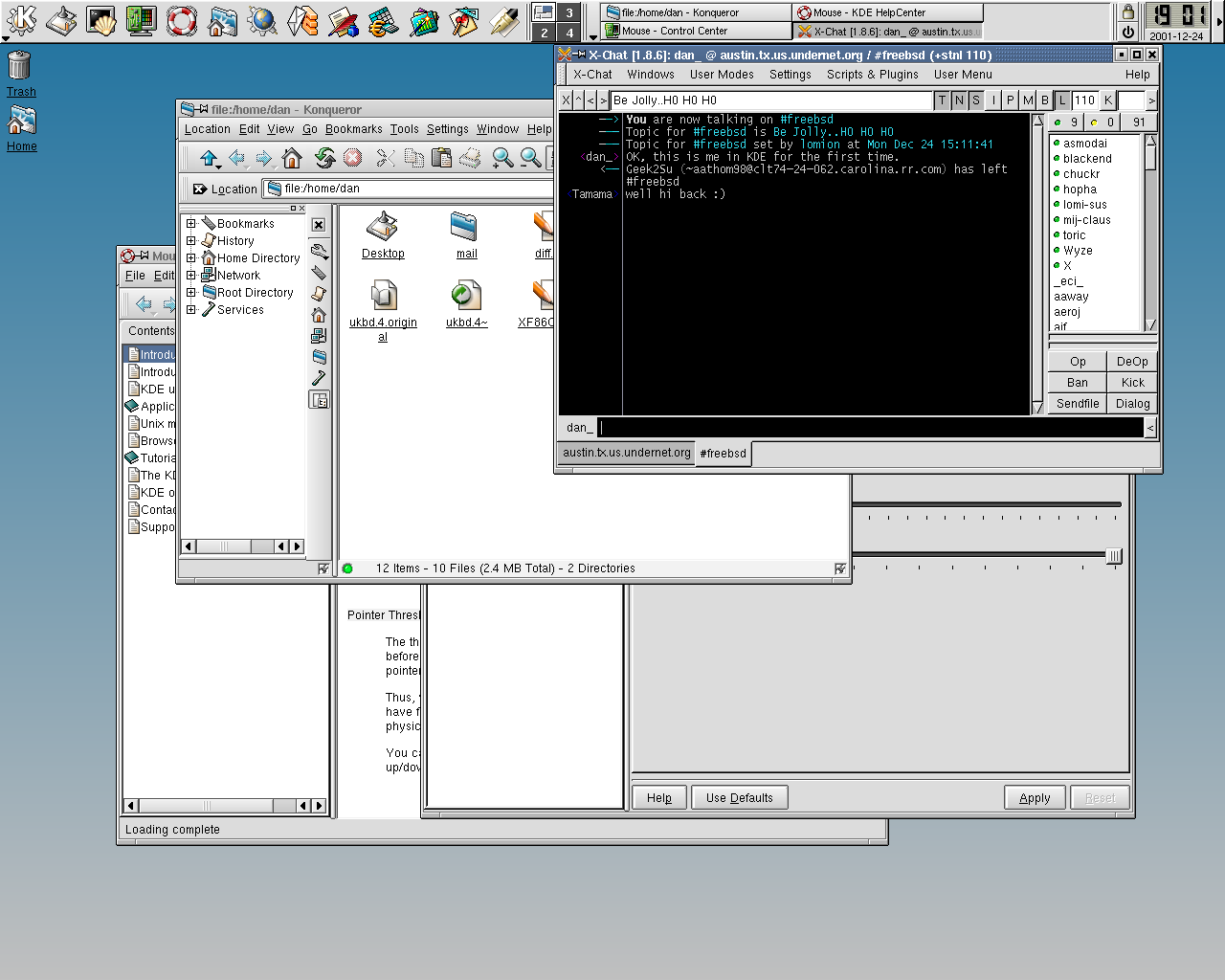
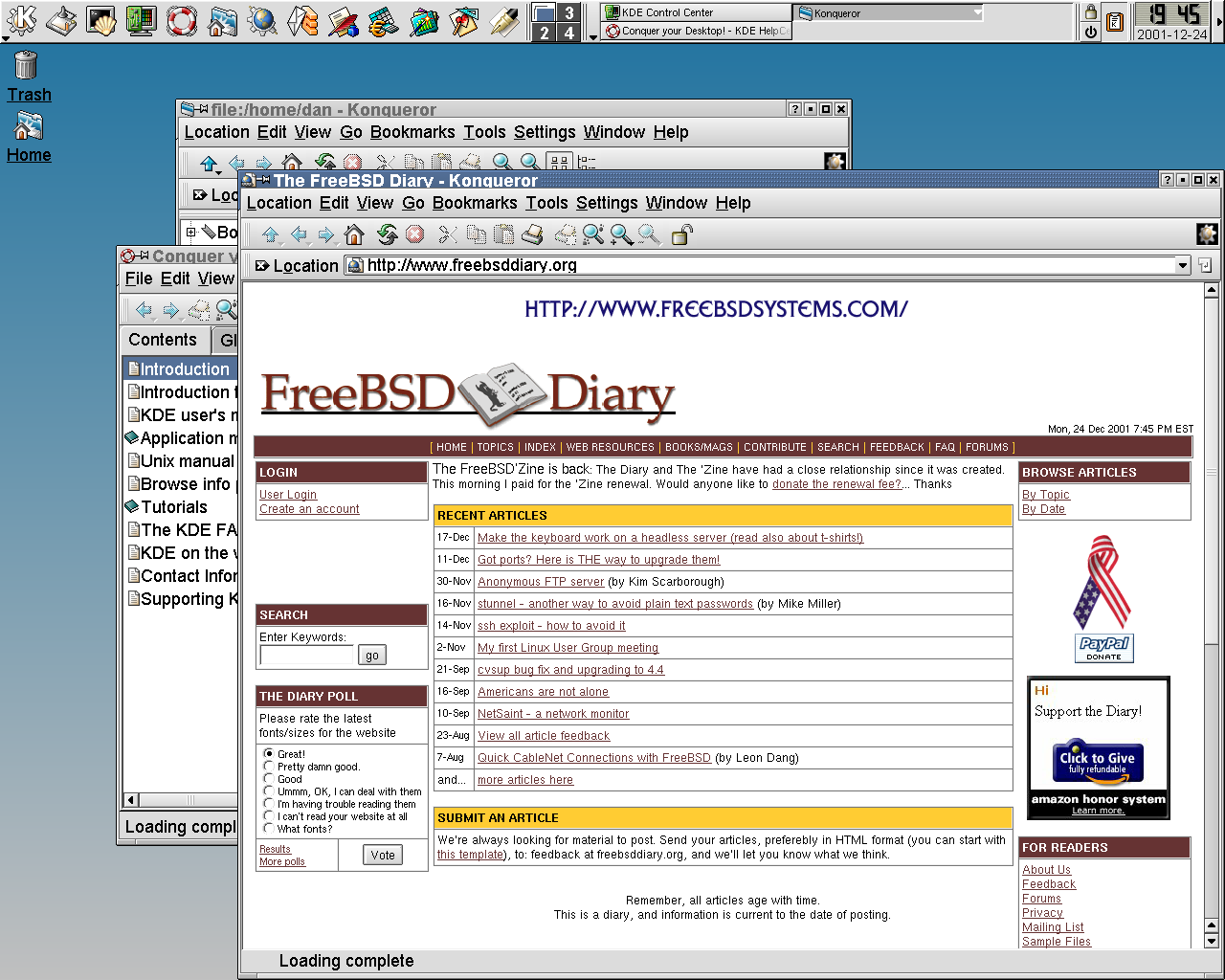
my This screen shot (96 KB PNG) is what my screen looks like after I installed kde and kdeartwork (see above). Here's another one showing this website. After installing the fonts, here's what the same screen looks like. Personally, I prefer the fonts from the first two images.
Here are the font paths from my See also True Type fonts and XFree86 although it deals with mostly with XFree86-3, there is a comment there which deals with XFree86-4. Those are the steps I performed to get TrueType fonts going.
Here is what I have in
And here is my This prevents antialiasing on the smaller fonts. |
|
Virtual consoles and X
|
|
I hope you know about virtual consoles. It's a way of having more than one
login session at the same time using the same console. The first console
is displayed when you press |
|
Screen saver/splash screen
|
|
As mentioned before, this box is destined to be used at an upcoming Linux User Group meeting. I thought a splash screen would be a good idea. This brilliant thought game to me while I was browsing through the The X Window System and Virtual Consoles section of The FreeBSD FAQ. I picked this splash screen from http://www.baldwin.cx/splash/. This bitmap will expand to fill your screen at boot time. It will remain displayed until you press a key or a screen saver loads. I also found this screen kicks in as a screen saver if you are on a console. I'm sure X has its own screen saver. |
|
See also my wheel mouse solution. I do like the look of KDE. What it gave me was good. The only other window manager I have used was Enlightment. That was a bare bones install on my laptop. It worked OK. But this KDE had a great deal of applications with it. A mini-office suite, editors, some graphics tools, mail clients, etc. It seems like a great package.
I spent the first two days with a very annoying mouse problem. I had a great problem getting mouse clicks
to work. I thought it was the mouse. Then I tried another. Same problem. Grrr!
The click would not "take" unless I press and hold down the button, move the cursor slightly, then let go.
Then and only then would the click take. I asked around, and someone suggested it sounded like I was using
And this in my
It was recommended that I stop running
I also commented out the section in my I stopped and started X. My mouse was great! Thanks tds-dmns. |
|
Stuck in X? Get out now!
|
|
I didn't tell all when I mentioned my mouse problem above. My first attempt actually failed. It gave me a mouse which didn't move. Technically speaking, the mouse moved, but the cursor on the screen didn't. That's when this handy get-out-of-XFree tip comes in handy: No fuss. No mess. No X. Then I was able to make the changes indicated above (correctly this time), get back into X, and have a moving clicking mouse. |
|
Various KDE/X Tips/Tricks
31 December 2001
|
|
I've been playing with some KDE settings and I've found what I think is a fairly good setup. The following are just a few tips/tricks I've found or been told about. DisplaySize
This is a directive you can add to the monitor section of your WARNING:Use the settings appropriate for your monitor. Using the wrong values may damage your monitor. Compare the screen shots before and after I made the above change. The KDE menu
I had been searching for a way to invoke the KDE menu (that's the one with the K symbol on it; it is analogous
to the Windows Start menu) from the keyboard. I found it in the Microsoft IntelliEye mouse wheelSee also my original mouse settings. Yes, I use Microsoft. In fact, I'm typing this on an MS Natural Keyboard, with an MS IntelliEye mouse, on an NT4 box, which is SSH's to my XEON. Use the tools which suit. If you don't want to use MS, don't. But don't knock anyone who does want to use them. That's not good advocacy. Here are the settings for my mouse when allowed me to get my mouse (which is a USB mouse but connected using a PS/2 adaptor): These settings allowed my mouse wheel to be used to scroll up and down. I tested it using KWord from KDE. My thanks to Dial_tone for the mouse and DisplaySize help. |
|
Back it up!
|
|
As was so correctly pointed out to me, once you have a working |