The FreeBSD Diary |
|
(TM) | Providing practical examples since 1998If you buy from Amazon USA, please support us by using this link. |
|
Using two monitors with X.org
17 March 2008
|
|
I recently started building up a new box which will eventully become both a workstation and a jail server. This computer has two monitors attached and it runs pretty good. The hardware is:
My thanks to Christian Laursen for helping me set this up. He put me onto xrandr and the Virtual keyword. |
|
The xorg.conf
|
|
The key section in my xorg.conf file is the Screen. I have reproduced it here. Note the Virtual directive. The 3360 is 2 x 1680, which is the horizontal resolution of one of my monitors. This gives us a virtual screen twice as wide as a single screen. Which is not coincidental, given I have two monitors.
Section "Screen"
    Identifier  "Screen 1"
    Device      "e-GeForce8600GT"
    Monitor     "Dell2005FPW"
    DefaultDepth 24

    Subsection "Display"
        Depth       8
        Modes       "1680x1050" "1280x1024" "1024x768" "800x600" "640x480"
        Virtual 3360 1050
        ViewPort    0 0
    EndSubsection
    Subsection "Display"
        Depth       16
        Modes       "1680x1050" "1280x1024" "1024x768" "800x600" "640x480"
        Virtual 3360 1050
        ViewPort    0 0
    EndSubsection
    Subsection "Display"
        Depth       24
        Modes       "1680x1050" "1280x1024" "1024x768" "800x600" "640x480"
        ViewPort    0 0
        Virtual 3360 1050
    EndSubsection
EndSection
At this point, both screens are set up and connected to the video card,
which has two DVI outputs. When you start X, you'll see the same image
on both screens.
|
|
xrandr magic
|
|
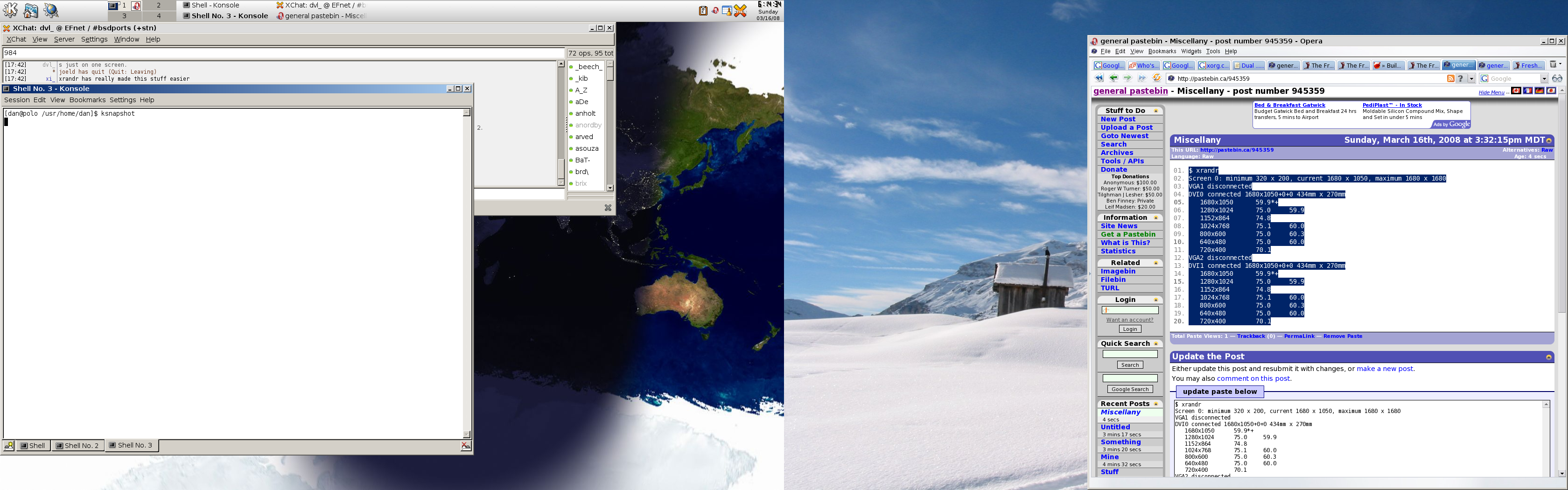
Be sure to install x11/xrandr. This is a "Primitive command line interface to the RandR extension". See http://en.wikipedia.org/wiki/XRandR for more information. cd /usr/ports/x11/xrandr make install clean After installing, run xrandr. I saw this: $ xrandr Screen 0: minimum 320 x 200, current 1680 x 1050, maximum 1680 x 1680 VGA1 disconnected DVI0 connected 1680x1050+0+0 434mm x 270mm 1680x1050 59.9*+ 1280x1024 75.0 59.9 1152x864 74.8 1024x768 75.1 60.0 800x600 75.0 60.3 640x480 75.0 60.0 720x400 70.1 VGA2 disconnected DVI1 connected 1680x1050+0+0 434mm x 270mm 1680x1050 59.9*+ 1280x1024 75.0 59.9 1152x864 74.8 1024x768 75.1 60.0 800x600 75.0 60.3 640x480 75.0 60.0 720x400 70.1 Now for the magic. Issue the following command: xrandr --output DVI1 --right-of DVI0 Now you should have one large desktop and be able to move the mouse from one monitor to the other. Very nice. :) |
|
Keeping the two screens every time
|
|
To invoke xrandr each time you start X, add the command to ~/.xinitrc (or ~/.xsession, whichever you are using): xrandr --output DVI1 --right-of DVI0I added that entry just before the call to startkde. Here is my screen shot.
|